Persistent cache
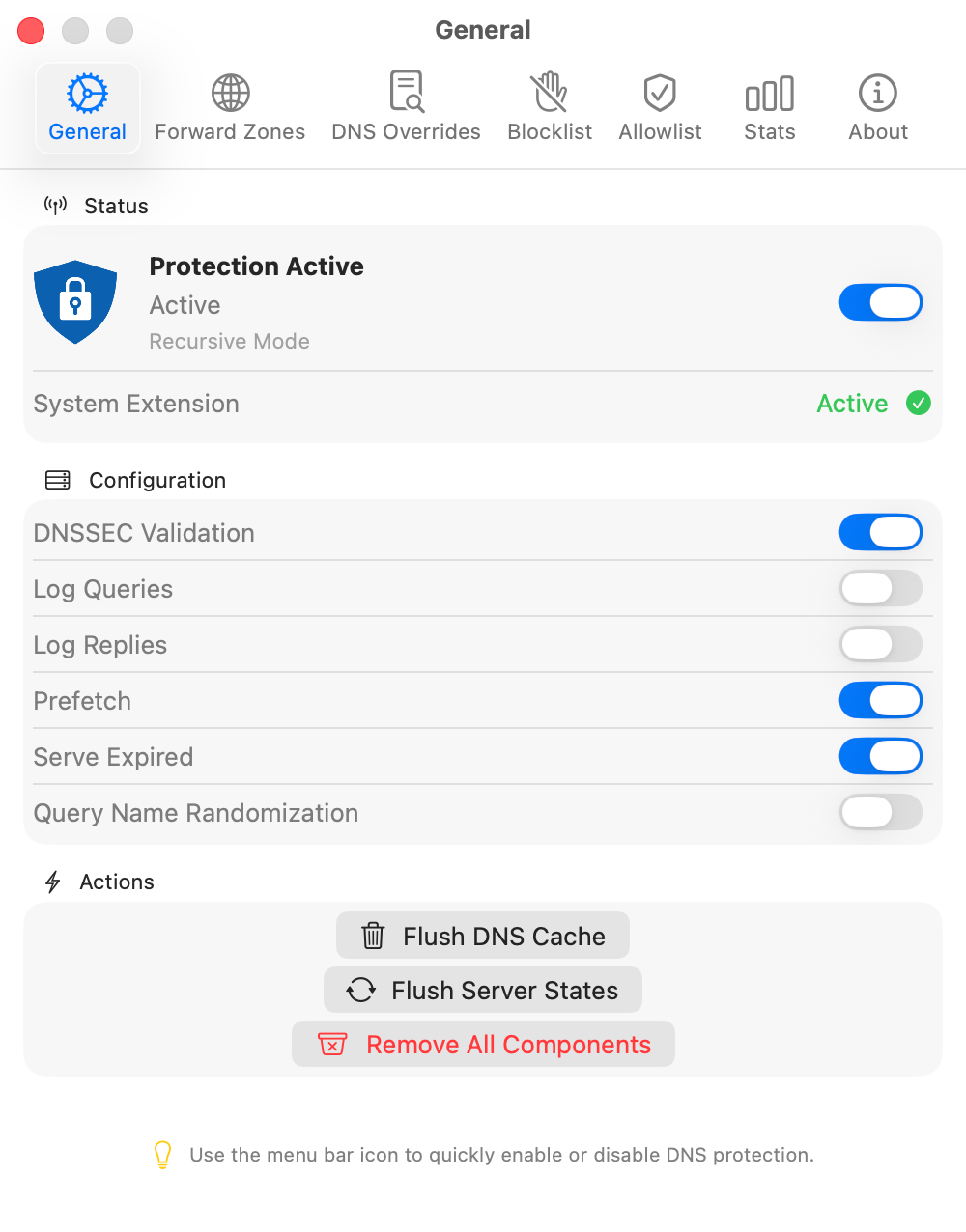
Eligible DNS answers survive restarts. When enabled, prefetch refreshes recently used names as they approach expiry, so later lookups can reuse the cache.
Product features
Let DNS providers compete, refine cached answers, and block unwanted domains. Give local projects their own names and route private domains, all from one native Mac app.
macOS 14+Intel + Apple silicon21 days, no card
Encrypted upstreams
A slow provider does not have to hold up your DNS lookup. Enable Cloudflare, Google, and Quad9 individually or together, then choose how they are queried. Public requests to these providers use DNS over HTTPS.
Parallel. Start queries to all enabled providers together. The first positive answer returns without waiting for the others.
Staggered. Start with the provider ranked fastest by recent average DNS latency. Other providers start after short, adaptive delays, without waiting for its full timeout.
Sequential. Try one provider at a time, moving on if it does not produce a positive answer within the attempt budget. This mode does not compare answers in the background.
Adaptive dispatch
Staggered mode learns from recent DNS response times. It gives the fastest-ranked provider a head start while allowing others to join the lookup soon after. You choose the mode. MacDNS calculates the delays.
If the fastest provider averages 40 ms, the three ranked providers are scheduled at 0, 20, and 40 ms. These are dispatch delays, not promised response times.
The delay is half the fastest provider’s recent average latency multiplied by rank, bounded to 10–150 ms for additional providers. When any enabled provider has no latency history, all start together.
Pending queries can continue briefly after the first answer to collect results. Staggered mode does not guarantee that only one provider receives the query.
Answer Refinement
The quickest DNS reply does not always point to the quickest destination. In parallel and staggered modes, MacDNS returns the first positive answer, then compares the IP addresses returned by different providers in the background. A refined answer can replace the cached result for later lookups.
If two or more providers return the same non-empty IP set, that consensus can update the cache. When there is no consensus and Answer Refinement is enabled, MacDNS uses ICMP latency probes to compare eligible public destination addresses.
It selects a provider’s answer using the lowest measured destination latency. Private and reserved addresses are excluded from probes. If probes fail or exceed their time budget, it falls back to the first candidate.
The first reply does not wait for refinement. Cache replacement preserves the entry’s original expiry. ICMP latency is a selection signal, not a guarantee of faster page loads or a security verdict.
Split DNS
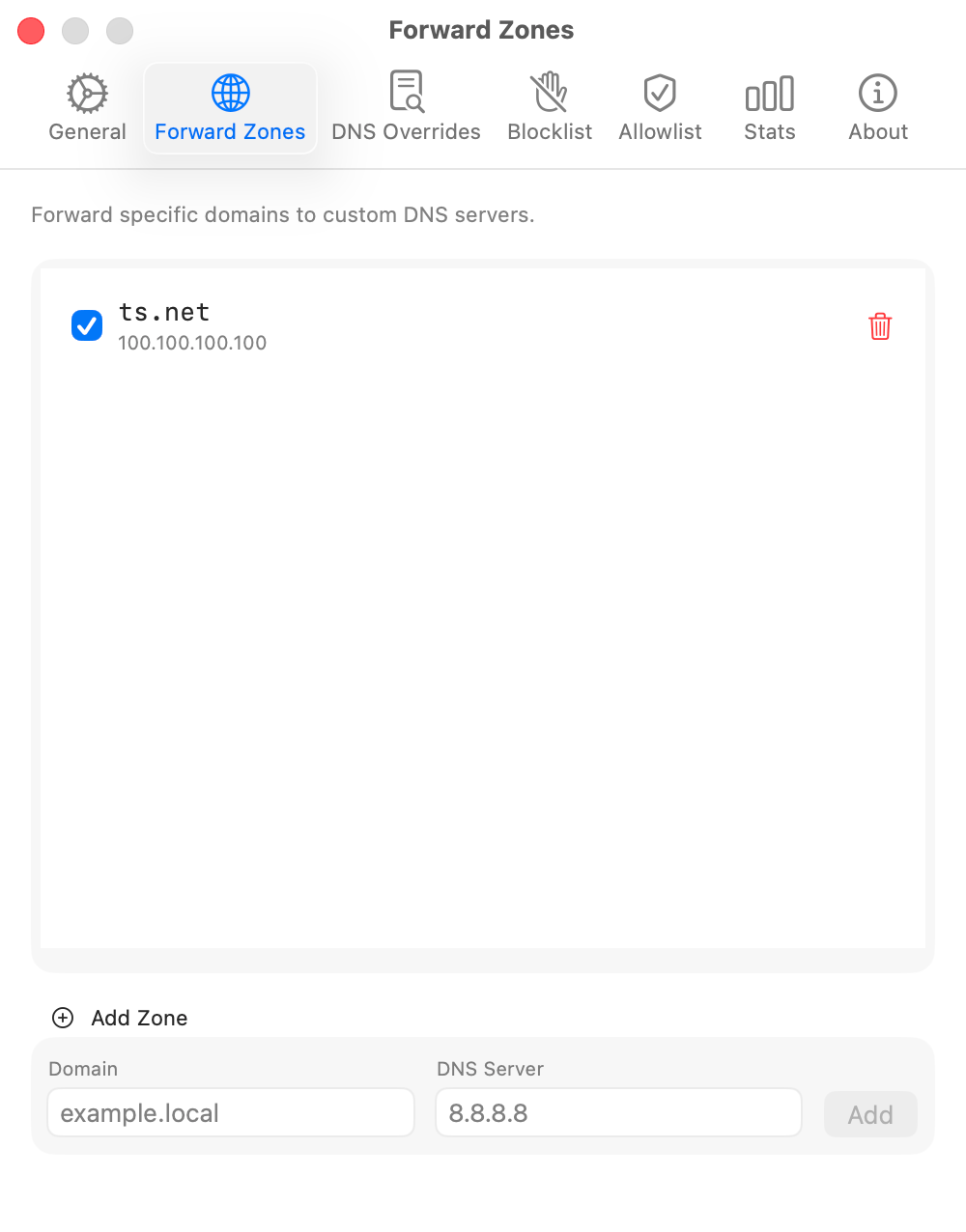
Send internal domains to your own DNS server while public names use your selected providers. Configure a forward zone for your home lab or work network. MacDNS also uses supported private routes from the current network and keeps private reverse lookups and .onion names off public DoH, including during background refreshes.
Local records
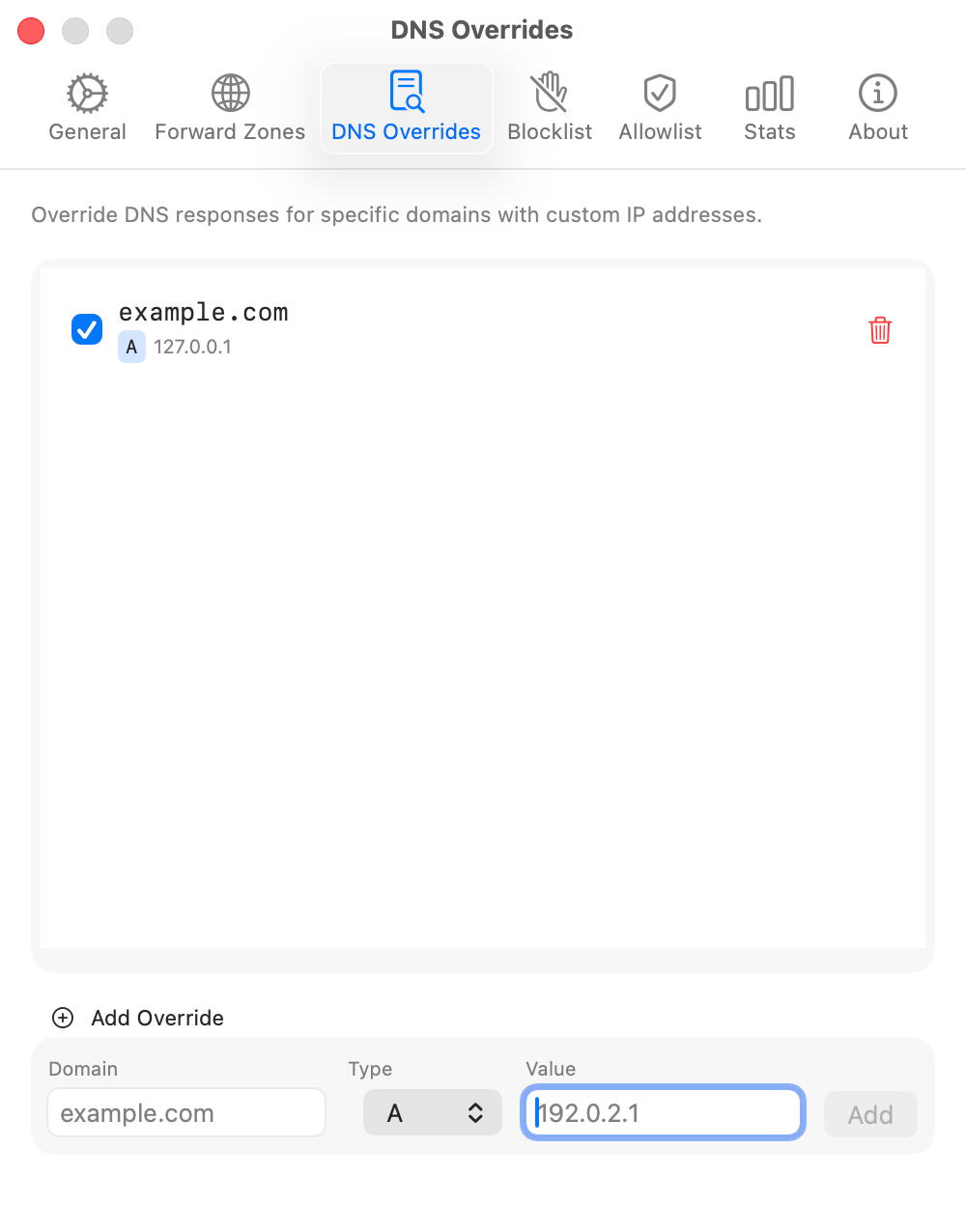
Give local projects their own domain names without editing /etc/hosts. Configure exact names or wildcards directly in MacDNS, with A, AAAA, CNAME, MX, TXT, PTR, and NS records. Matching requests are answered locally.
Exceptions
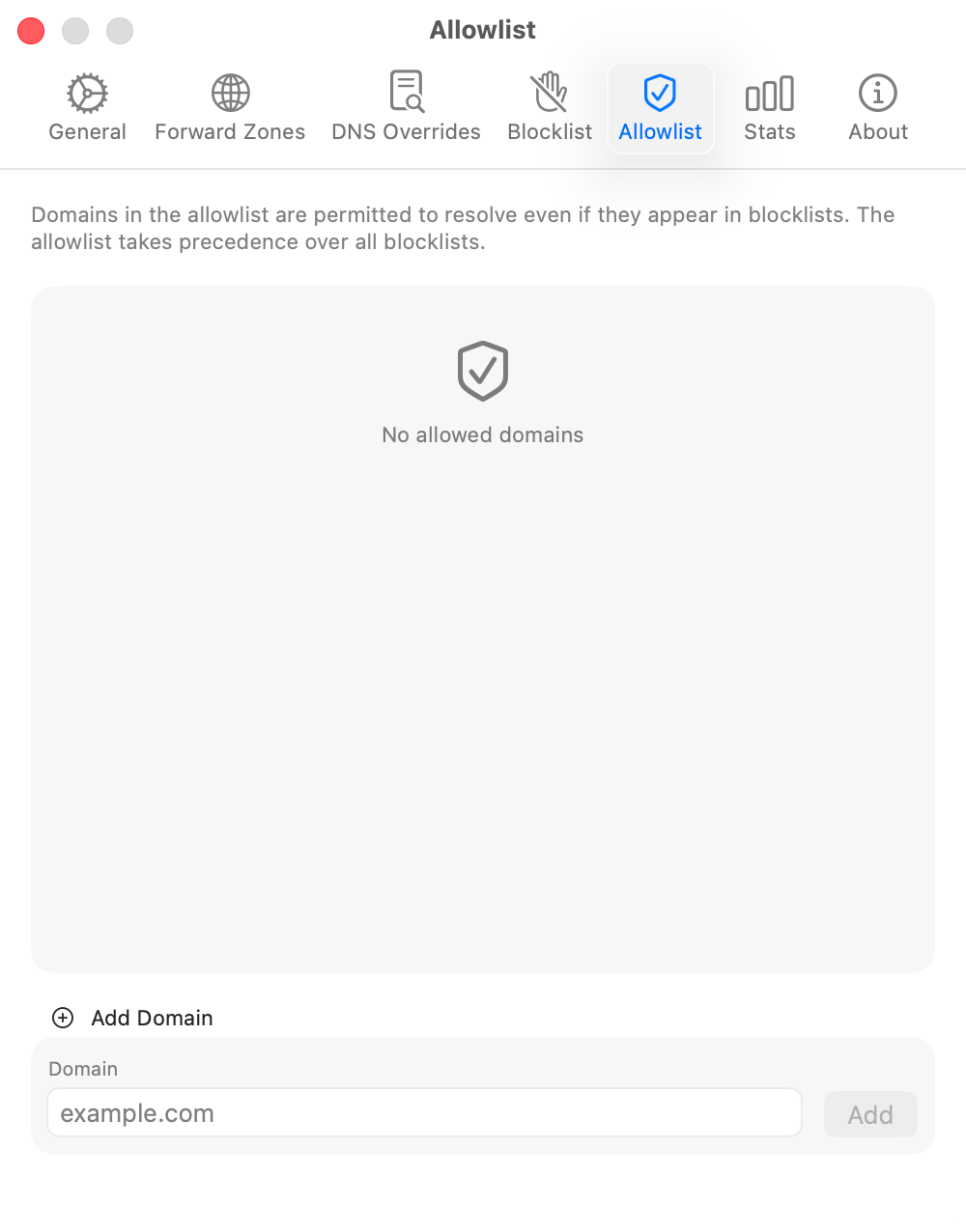
If a blocklist stops a domain you need, add an allowlist exception. You can turn exceptions on or off without deleting them. Other DNS policy, private routing, and local overrides continue to apply.
Local filtering
Choose separate blocking levels for ads, trackers, known threats, and other unwanted domains. Blocking depends on the lists you select. MacDNS stores the lists on your Mac and keeps the previous working data if an update is empty or broken.
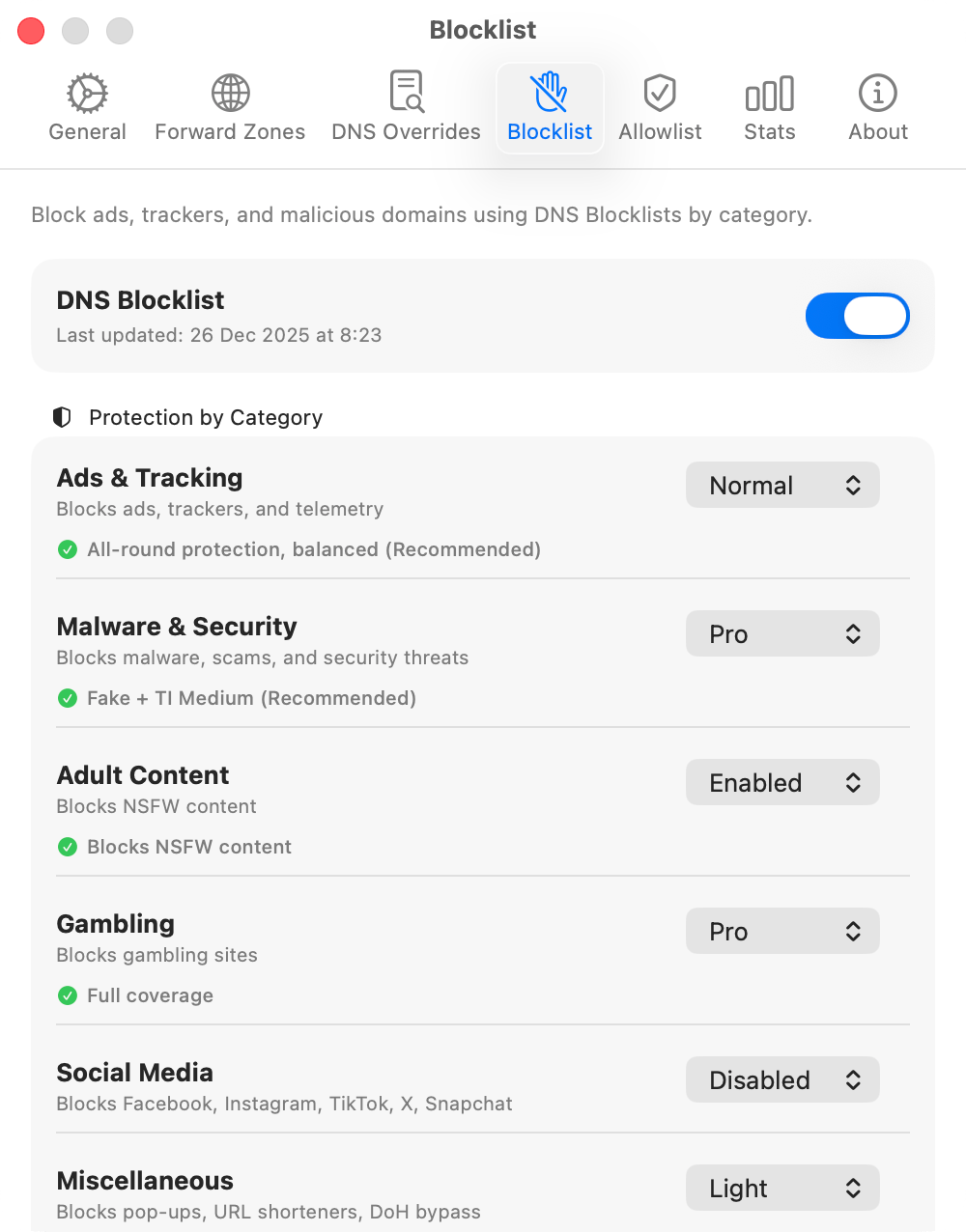
Available levels by category
Ads, trackers, and telemetry
Malware, scams, and known security threats
NSFW domains
Gambling and betting domains
Facebook, Instagram, TikTok, X, and Snapchat
Pop-ups, URL shorteners, and DoH bypass
Domain counts come from the upstream lists and can change between updates.
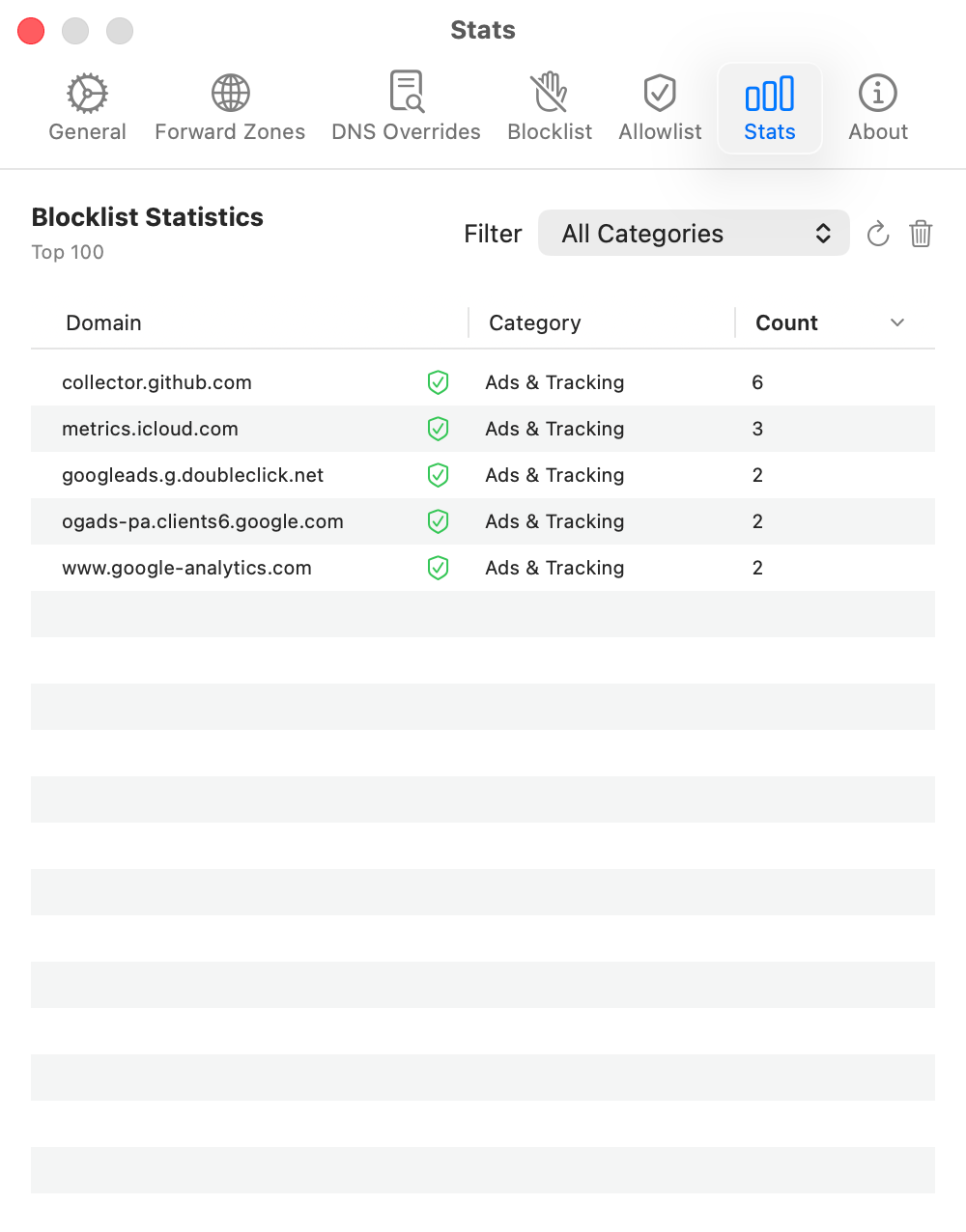
Local visibility
Find which domain was blocked, check its category, and add an exception when needed. The Stats tab shows local blocklist activity, not a history of every DNS request.
Runtime behavior
Move between Wi-Fi networks, connect a VPN, or wake your Mac. MacDNS monitors these changes and captive portals to rebuild stale DNS connections and update its protection status.
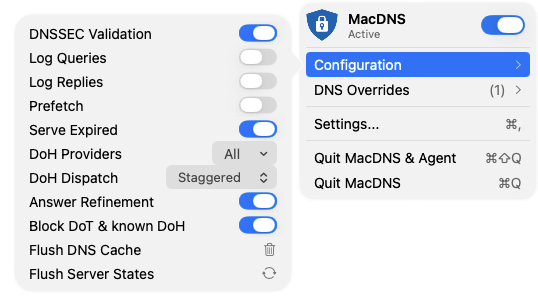
Eligible DNS answers survive restarts. When enabled, prefetch refreshes recently used names as they approach expiry, so later lookups can reuse the cache.
When enabled, Serve Expired can return an eligible stale answer if no fresh answer arrives within one second, while resolution continues in the background. It can also provide a fallback after upstream failure.
Connections are bounded, checked, and rebuilt after network changes instead of lingering in a stale state.
The menu reports active protection only when the DNS component confirms that it is intercepting traffic.
MacDNS detects an outdated DNS component after an update and either replaces it or reports that a restart is required.
The app, agent, and DNS extensions verify each other and fail closed when that trust check breaks.
Free trial
21 days with no payment details required.